Activities
When creating activities with images, you can add alternative text (alt text) — a written description that allows participants who cannot view the image to understand its contents. After uploading an image in the activity editor, a dashed-border text field labeled "Alternative text" will appear directly below the image — click into it to add your description. Alt text is supported on multiple choice, ranking, and clickable image activities.
Tips:
-
To add alt text: upload an image in the activity editor, then type your description into the "Alternative text" field that appears directly below the image.
-
Avoid clickable image activities where accessibility is a priority — replace them with multiple choice polls using text-based answer choices instead.
-
Alt text is not generated automatically — you must add it manually for every image you upload.
-
Write clear and concise descriptions so that screen reader users can easily perceive the content.
-
Use only standard keyboard characters in alt text (ASCII printable characters only).
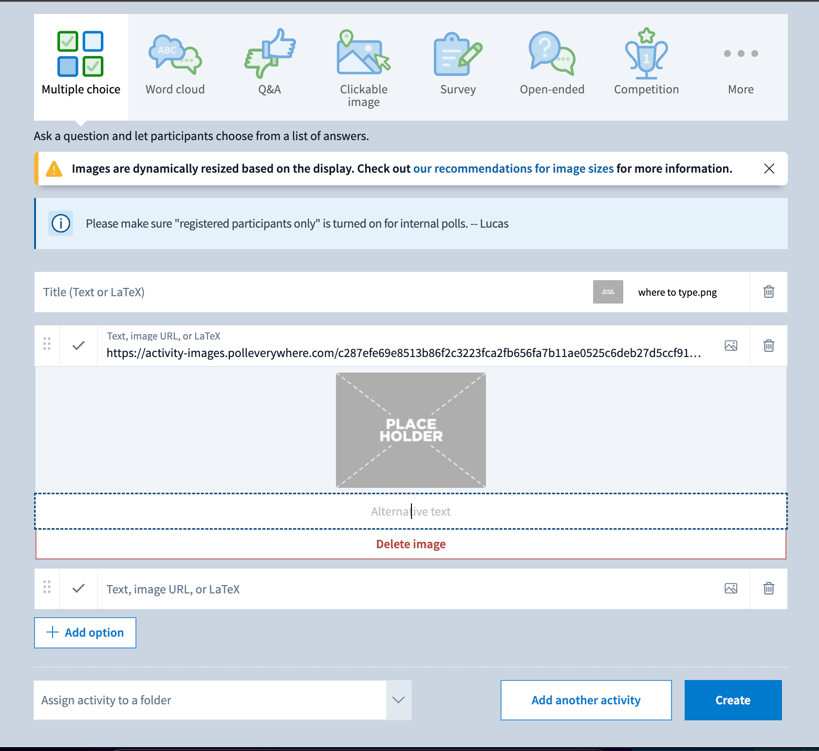
The "Alternative text" field appears below an uploaded image in the activity editor.
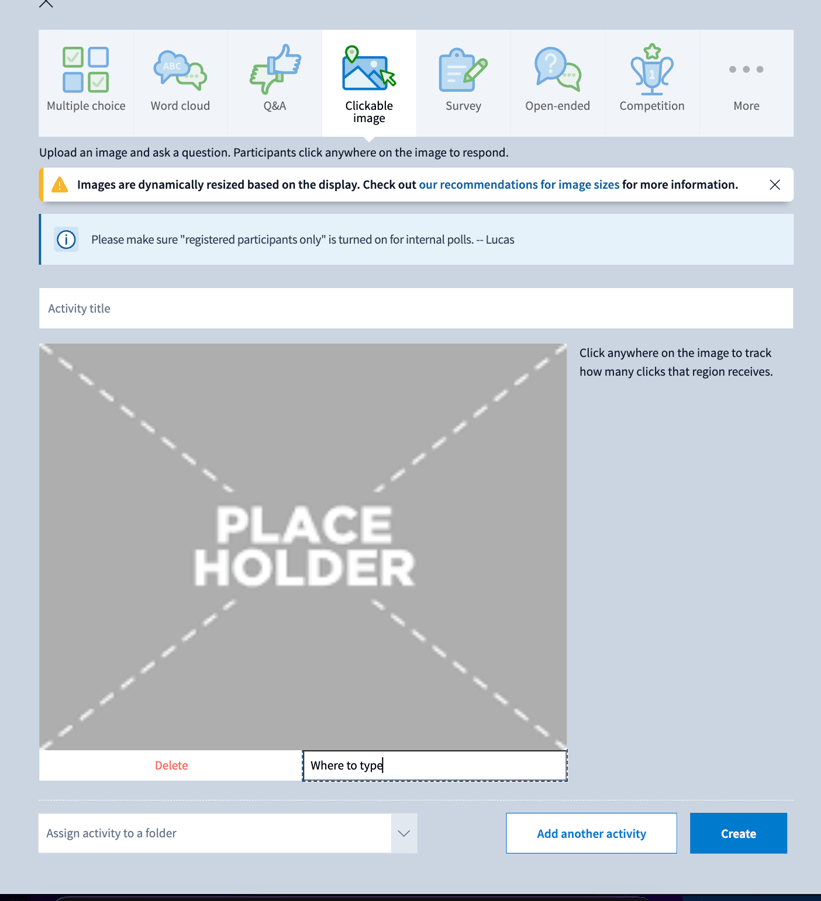
The Clickable image activity editor. For accessibility, replace with a multiple choice poll using text-based answer choices.
Polling
When running live polls, we recommend that presenters verbally read questions aloud to accommodate participants with visual disabilities.
Tips:
-
Do not rely on color alone to convey information in your activities or slides.
-
Check the color contrast of your slides to increase readability for participants with limited vision.
Keyboard Navigation
Most Poll Everywhere activity types support full keyboard navigation for participants. The exception is clickable image activities, which are not fully optimized for keyboard or screen reader users.
Tips:
-
Replace clickable image activities with multiple choice polls when keyboard accessibility is required.
-
All major areas of web content are navigable via keyboard.
Images & Media
All images and videos provided by Poll Everywhere include a text-based equivalent. Note that some tutorial videos do not currently include closed captions — all content covered by tutorial videos is also available in text-based support articles.
Color Contrast
When customizing the appearance of your polls, ensure sufficient contrast between foreground and background elements. Color settings are accessible via the Visual settings panel — click "Visual settings" in the top toolbar of any activity, then expand Color scheme or Background to adjust colors. Poll Everywhere conforms to WCAG 2.2 Level AA, which requires a minimum contrast ratio of 4.5:1 for normal text and 3:1 for large text and UI components.
Tips:
-
Before finalizing a custom color scheme, check your foreground and background color combination using one of the tools below.
-
Avoid low-contrast combinations such as light gray text on a white background.
-
Do not rely on color alone to distinguish answer choices or highlight results — use labels or patterns as well.
-
The Classic theme is Poll Everywhere's standard theme and is suitable for most accessibility needs.
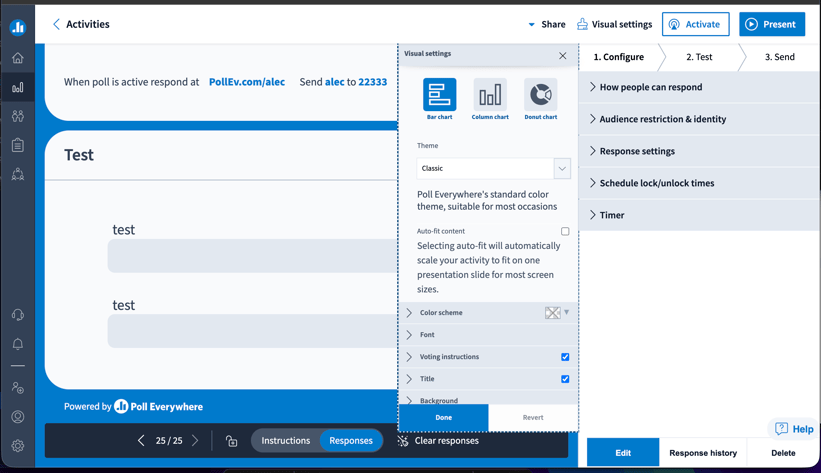
The Visual settings panel, accessible from the top toolbar of any activity.
Recommended contrast checking tools:
WebAIM Contrast Checker
A free web-based tool. Enter your foreground and background hex color values to instantly check your contrast ratio against WCAG AA and AAA thresholds. webaim.org/resources/contrastchecker
TPGi Colour Contrast Analyser
A free desktop app (Windows & macOS) with an eyedropper tool that lets you sample any color directly from your screen — ideal for checking colors in your Poll Everywhere activities in real time. tpgi.com/color-contrast-checker
Additional Resources
Full accessibility standards, VPATs, and remediation plans: landing.polleverywhere.com/pe1-accessibility
Questions or feedback: accessibility@polleverywhere.com